🎁 USB WARDEN GIVEAWAY · OCTOBER 2026 · 1-YEAR KEY
Lost your pen drive? Make sure nobody can open it.
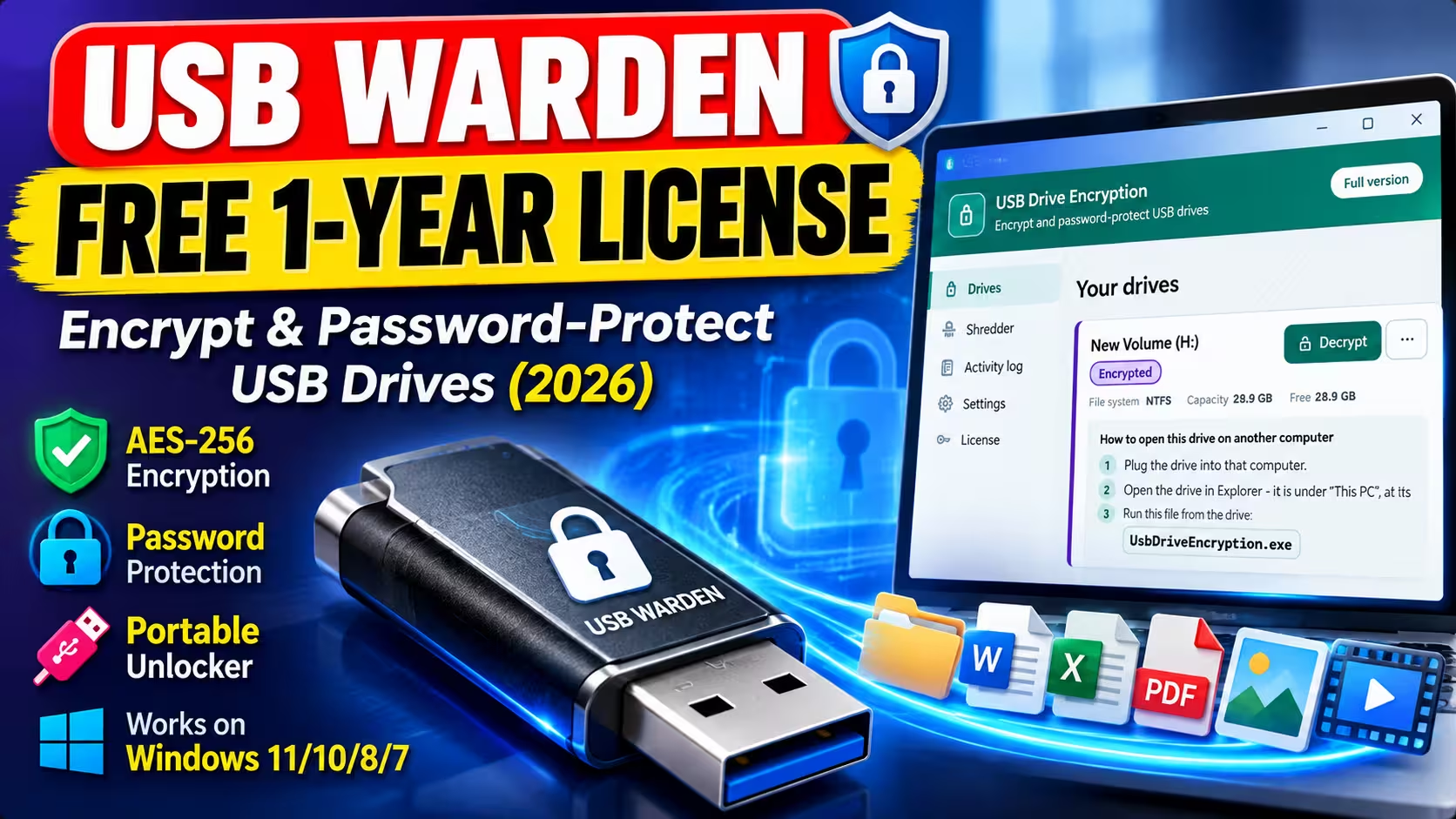
USB Warden locks a flash drive behind your password with AES-256 encryption, then opens it on any Windows PC — no install, no admin rights on that machine. GRTsoft has shared a free 1-year licence key for Techno360 readers, and I tested it on my own drives before writing this.
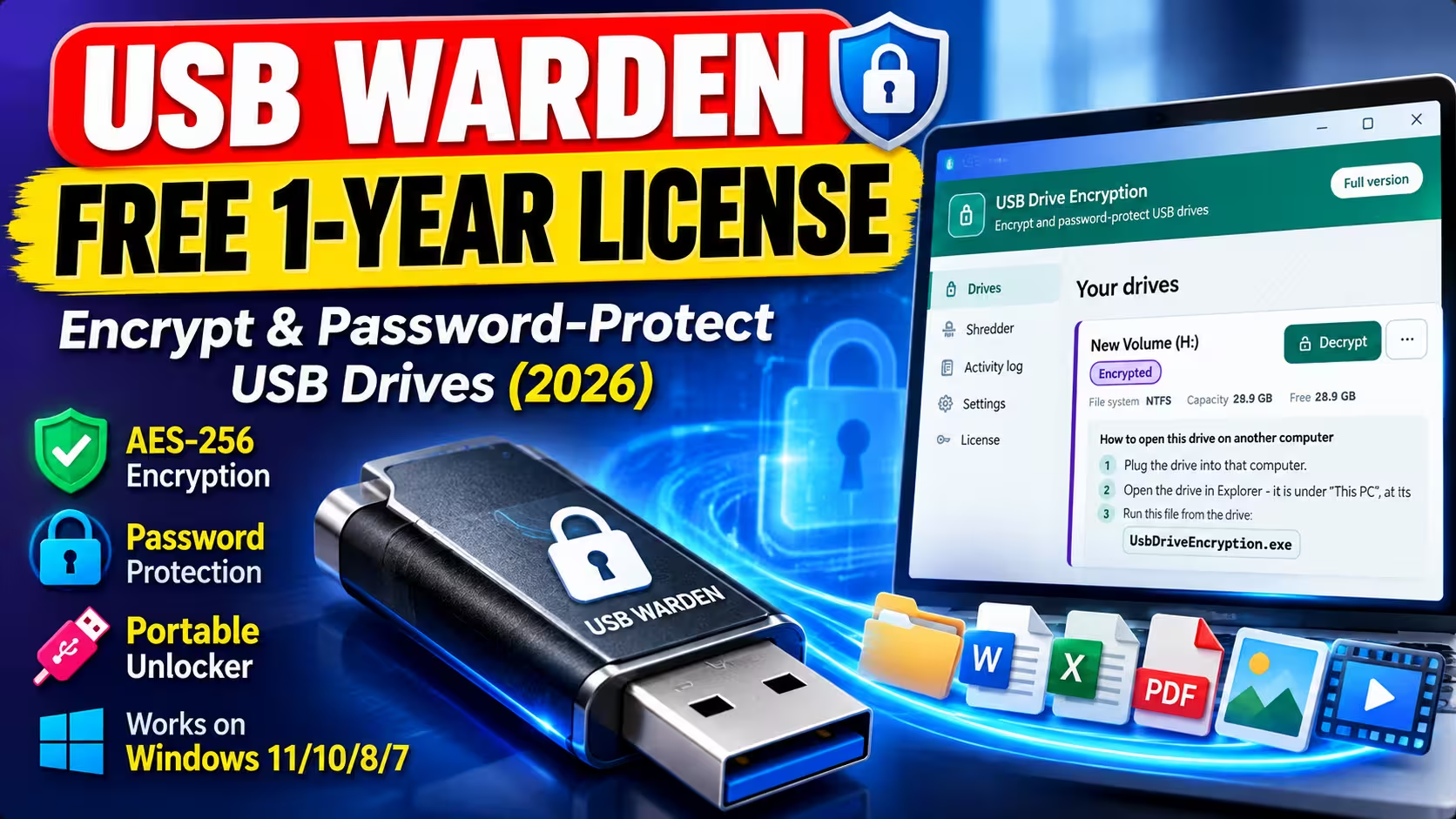
USB Warden free 1-year licence: AES-256 encryption, password protection and a portable unlocker for Windows.
⚡ Quick Read
- What it is: USB flash drive encryption for Windows by GRTsoft (the installer and app window still say “USB Drive Encryption”).
- The offer: one shared licence key for all readers, supplied by the developer, valid for 1 year.
- Version covered: 3.3 (the build I tested). The official page now lists 3.5 — the giveaway key is for 3.3, so don’t expect free upgrades.
- Works on: Windows 11, 10, 8.1, 8 and 7 (32/64-bit). Encrypted drives open on Windows only — not macOS or Linux.
- Without the key: 3 free drive protections. Getting your files back out is never blocked.
- Biggest catch: forget your password and lose the recovery key, and the data is gone for good. No reset exists.
USB Warden Free License Giveaway: Why This One Is Worth Grabbing
Pen drives are the least protected thing most of us own. They hold scanned Aadhaar and passport copies, tax papers, client files, family photos — and they fall out of pockets, get left in office PCs and vanish at print shops. Whoever picks one up can read everything on it in seconds.
The obvious fix on Windows is BitLocker To Go, but you can’t set it up on Windows 11 Home, which is what most laptops ship with. The other usual answer, encrypted container tools, tends to need administrator rights on every PC where you want to open the drive. That’s a problem when the PC belongs to a colleague, a college lab or a cyber café.
USB Warden goes after exactly that gap. You encrypt the stick once on your own computer, and a small unlocker program rides along on the drive. Plug it into any other Windows PC, run that file, type your password, and your files are there. Nothing gets installed on the borrowed machine.
A quick word on the name, because it confused me too. GRTsoft (a brand of SoftOrbits) now sells this tool as USB Warden, and that’s the name the developer asked us to use. But the installer file, the setup wizard and the app window I tested all still read “USB Drive Encryption.” Same program — you’ve downloaded the right thing.
What Is USB Warden?
It’s a Windows app built for one job: turning a removable drive — flash drive, memory card or external disk — into something only you can read. It deliberately ignores your internal and system drives; they never even appear in the list.
When you protect a drive, your files are encrypted and moved into a hidden folder on that drive. Open the drive in File Explorer afterwards and it looks empty apart from one small program, the portable opener. The app is refreshingly honest about this part: it points out that hiding is not the security. Anyone can switch on “show hidden files” and see the folder. What they can’t do is read anything inside it.
That distinction matters. Plenty of cheap “USB lock” tools only hide files or flip attributes, and a free archiver or a Linux live USB walks straight past them. If you want to compare approaches, our IObit Protected Folder Pro giveaway covers folder locking on your PC itself, which is a different problem from securing a drive you carry around.
Official product page: grtsoft.com/usb-drive-encryption
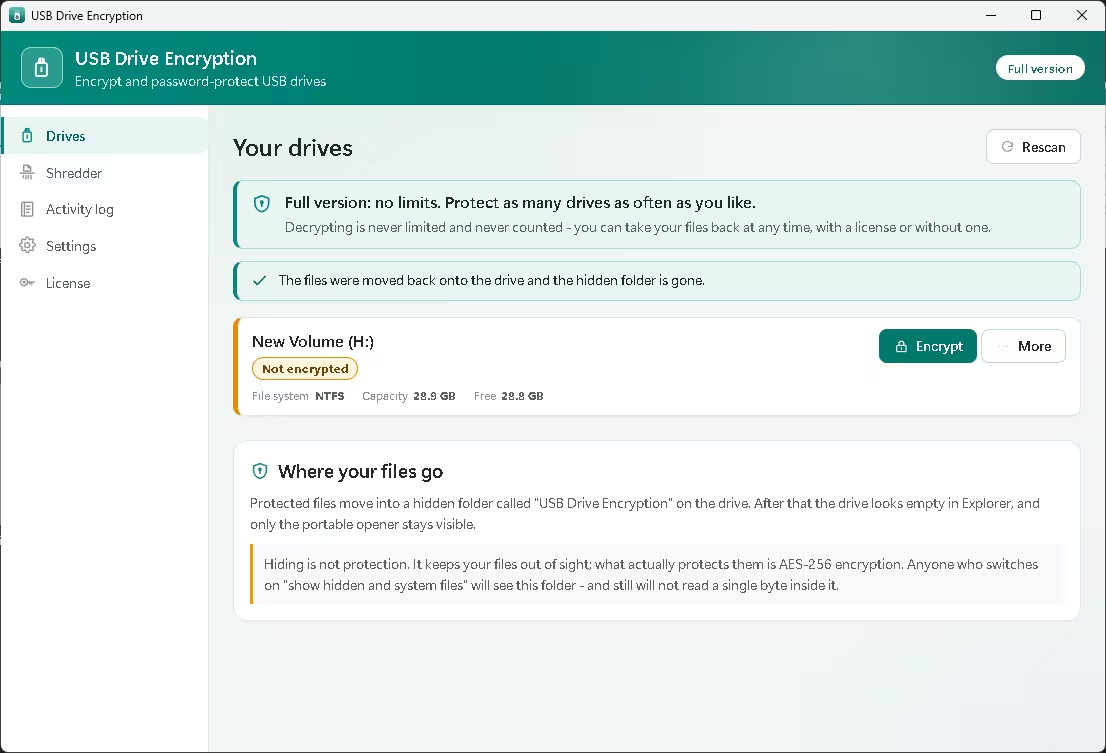
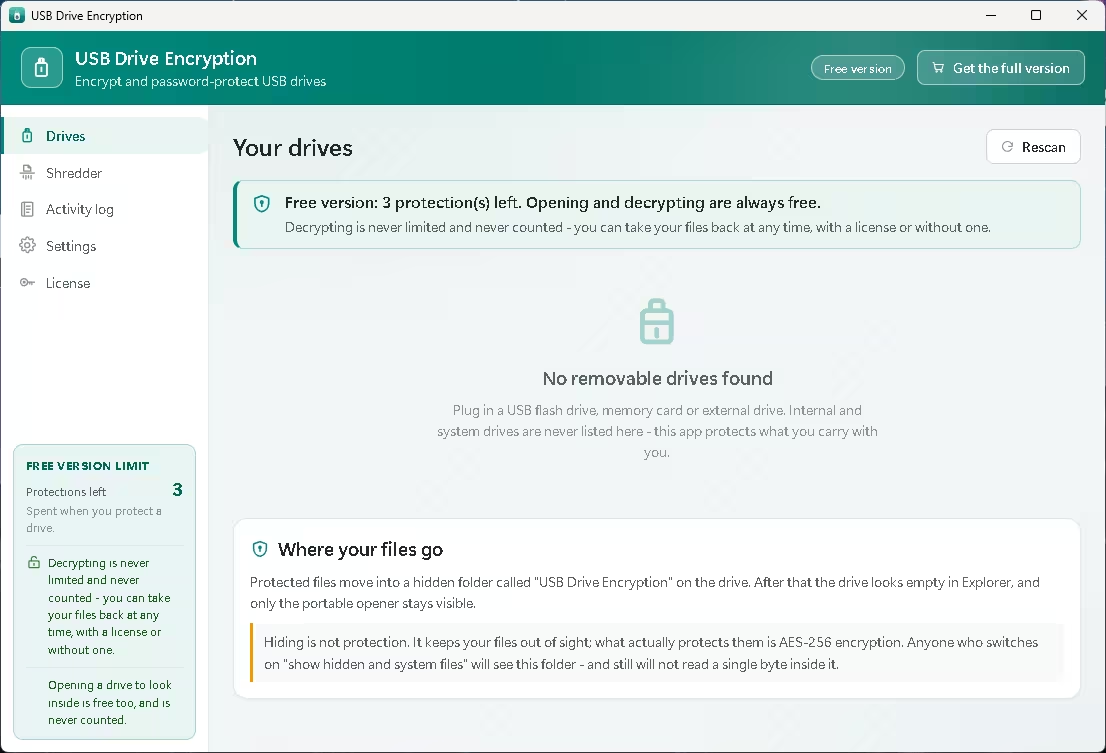
The main screen before activation — the sidebar counter shows 3 free protections left.
Key Features of USB Warden
AES-256 USB Drive Encryption
According to GRTsoft, file contents are sealed with AES-256-GCM, and the encryption key is built from your password using Argon2id. That second part is the more interesting one: Argon2id is a deliberately slow key-derivation method that makes brute-forcing a password far more expensive. I can confirm what the app shows and how it behaves; I haven’t audited the cryptography myself, so treat the algorithm details as the developer’s statement.
There’s no reformatting or repartitioning. Your existing files stay on the stick, and Windows still sees an ordinary drive.
Password Protection and Recovery Key
On first launch you pick a single master password. It opens the app and it’s also the password your drives use. Right after that, the app shows you a recovery key — once, on screen — with buttons to copy it, save it to a file or print it. You have to tick a box confirming you’ve stored it before you’re allowed in.
The developer says this key isn’t tied to the drive, your PC or any online account. It’s the only way back in if you forget your password. Lose both, and nobody — not even GRTsoft support — can recover the files. There is no back door, by design.
Portable Unlocking on Windows PCs
Every encrypted drive gets a portable opener called UsbDriveEncryption.exe, about 2 MB in size. On another PC you open the drive, run that file, enter your password and browse. The app’s own instructions state that nothing is installed on that computer and no administrator rights are needed. If the opener ever gets deleted, the developer says you can copy the program back onto the same drive and your password still works, because the protection lives in the data, not the exe.
Your Files Are Never Held Hostage
This is the part I liked most. The app says repeatedly — on the main screen, in the licence page and in the sidebar — that decrypting is never limited. Free limit used up? Licence expired? Reinstalled Windows? You can still decrypt and take your files back. With a 1-year giveaway licence, that’s a genuinely important promise.
Our Hands-On Review of USB Warden
I tested version 3.3 on my Windows 11 PC in October 2026, using two drives: a tiny 5 MB FAT test volume and a 28.9 GB NTFS USB drive. Here’s how it went, step by step.
Setup takes about a minute
The installer is a standard wizard. One detail worth knowing: it installs into your user profile (AppData\Roaming\SoftOrbits) rather than Program Files. Then comes the master password screen. The text under the fields doesn’t sugar-coat anything — it tells you outright that there’s no “reset password” option and there never can be.
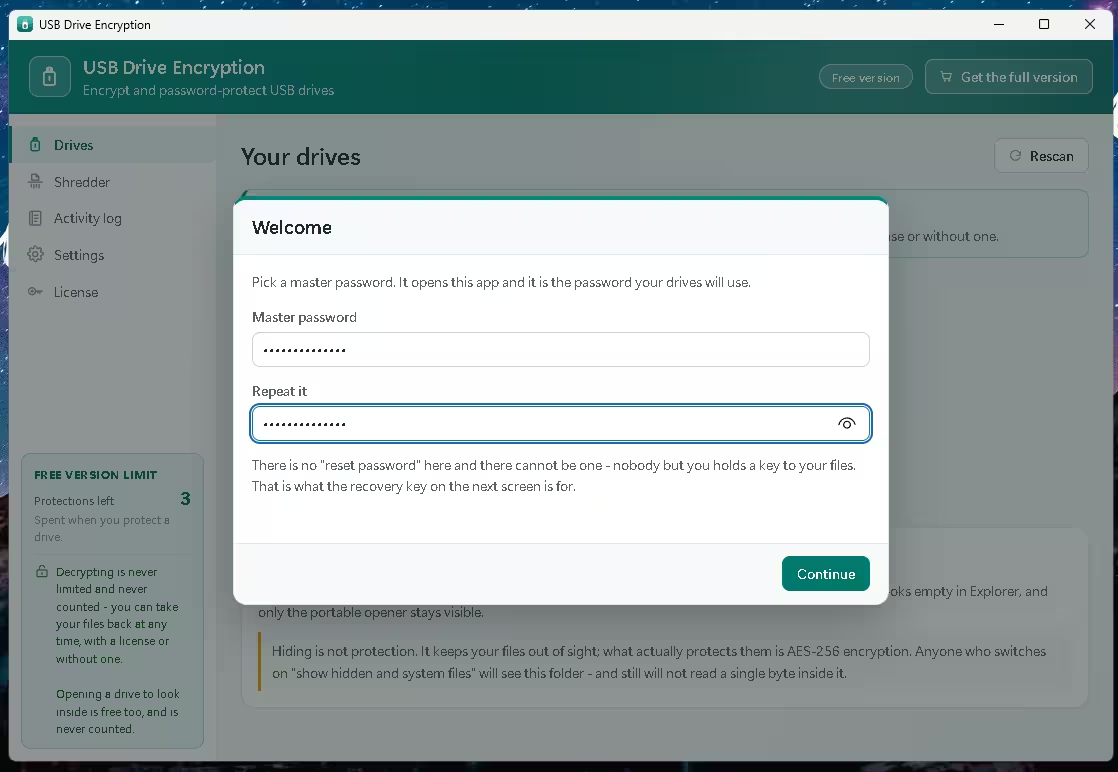
Choose this password carefully — it unlocks both the app and every drive you protect.
Next, the recovery key appears. It’s a long code shown in a dashed box, with Copy, Save to a file and Print buttons. A red warning box spells out the consequences of losing it. I saved it to a file and also printed a copy — I’d suggest you do both, and keep one somewhere that isn’t the USB drive itself.
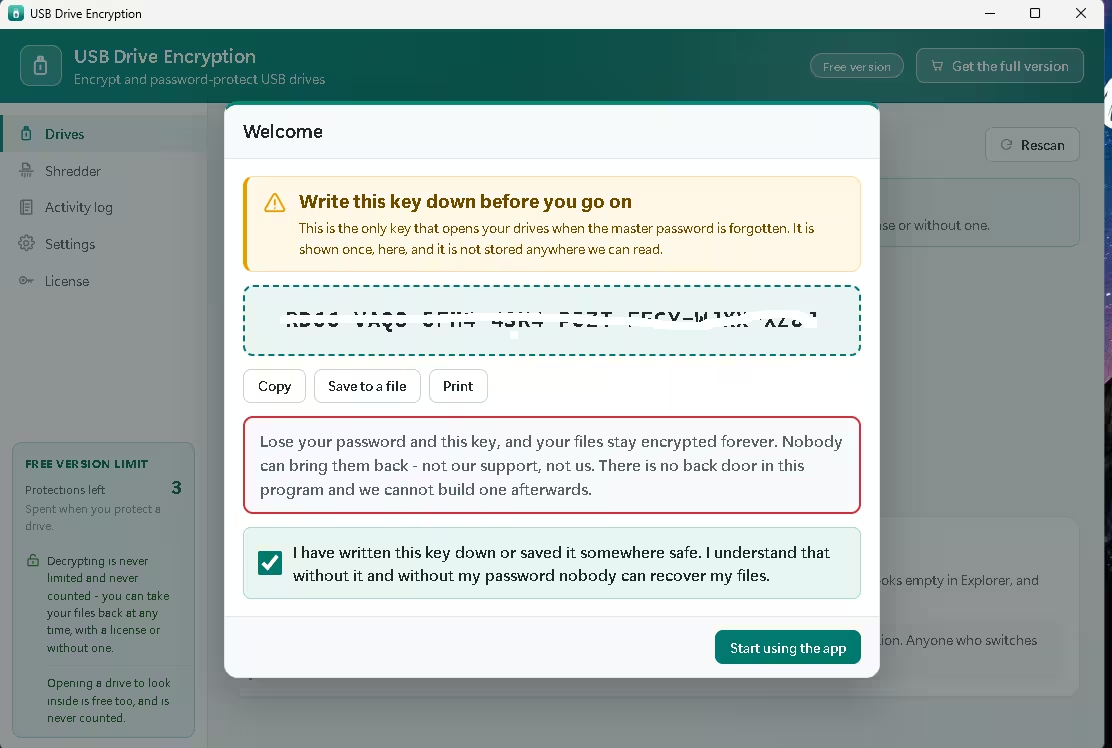
My recovery key is blurred here. You must tick the confirmation box before the app lets you continue.
The app stops you before you break something
My 5 MB test volume had just 1.4 MB free. Instead of starting and failing halfway, USB Warden flagged it upfront: it needed 8 MB free. The reason it gave makes sense — each file is encrypted and written next to the original before the original is replaced, so you need free space for your largest single file, not for the whole drive. That was a limit of my silly little test volume, not a flaw. On a normal stick with some breathing room you won’t hit it, but if your drive is packed to the brim, clear some space first.
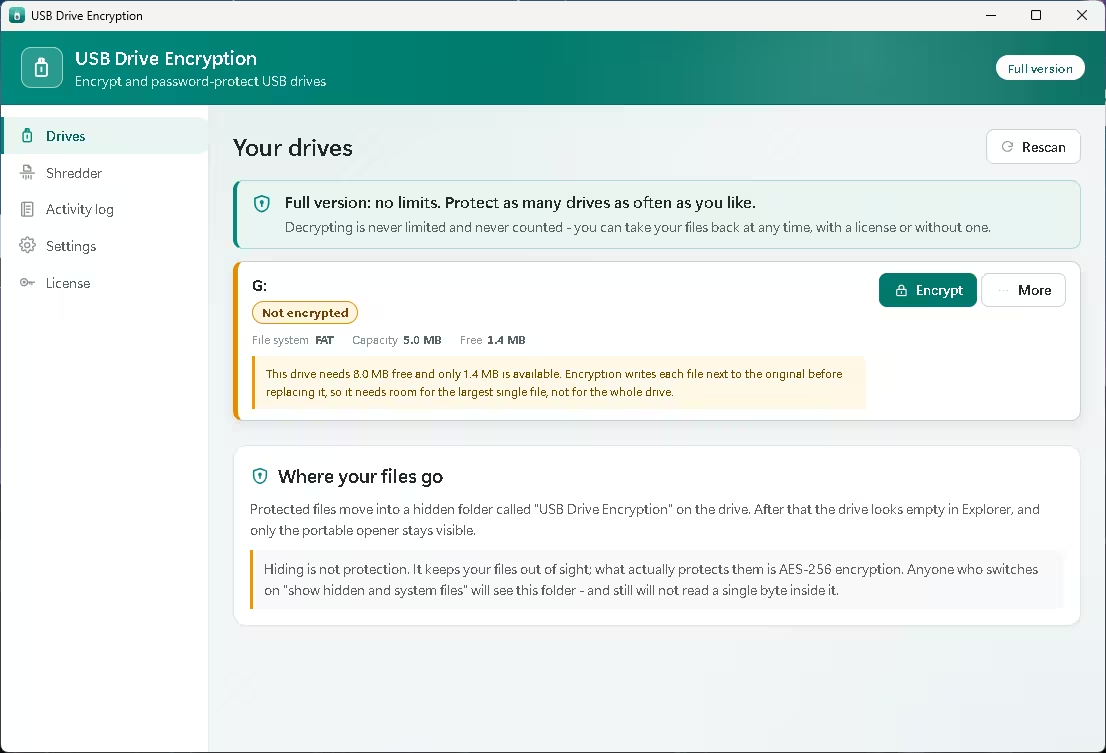
Clear free-space warning on my undersized test volume, shown before any changes were made.
Encrypting a real drive
The 28.9 GB NTFS drive encrypted without fuss. Once done, its card turned to an “Encrypted” badge with a Decrypt button, plus a neat four-step guide on opening the drive on another computer. I also appreciated the plain explanation of two options that are easy to mix up: View files lets you look while the drive stays locked, and Decrypt removes the protection completely.
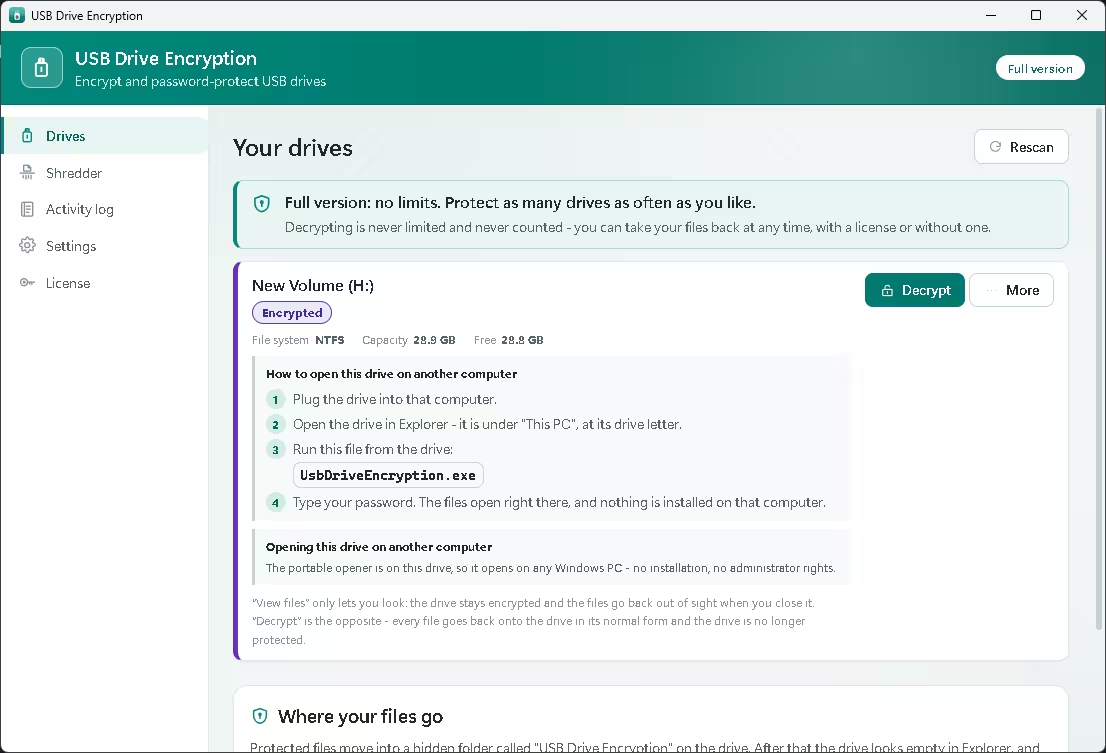
My 28.9 GB drive after encryption, with built-in instructions for opening it elsewhere.
Settings worth a look
The Settings page is short and sensible. By default, the app re-reads every file after writing it before deleting the original. That doubles the work but catches cheap USB controllers that report a write as done before it actually is. There’s a “fast encryption” switch to skip that check — I left it off, and I’d recommend you do too. The developer also says unplugging mid-process can’t lose a file, as the app finishes the interrupted job next time.
You can change your master password here or issue a new recovery key. Note that a new key only applies to drives you encrypt from then on; older drives keep the key you saved earlier. There’s also a dark theme and a language picker.
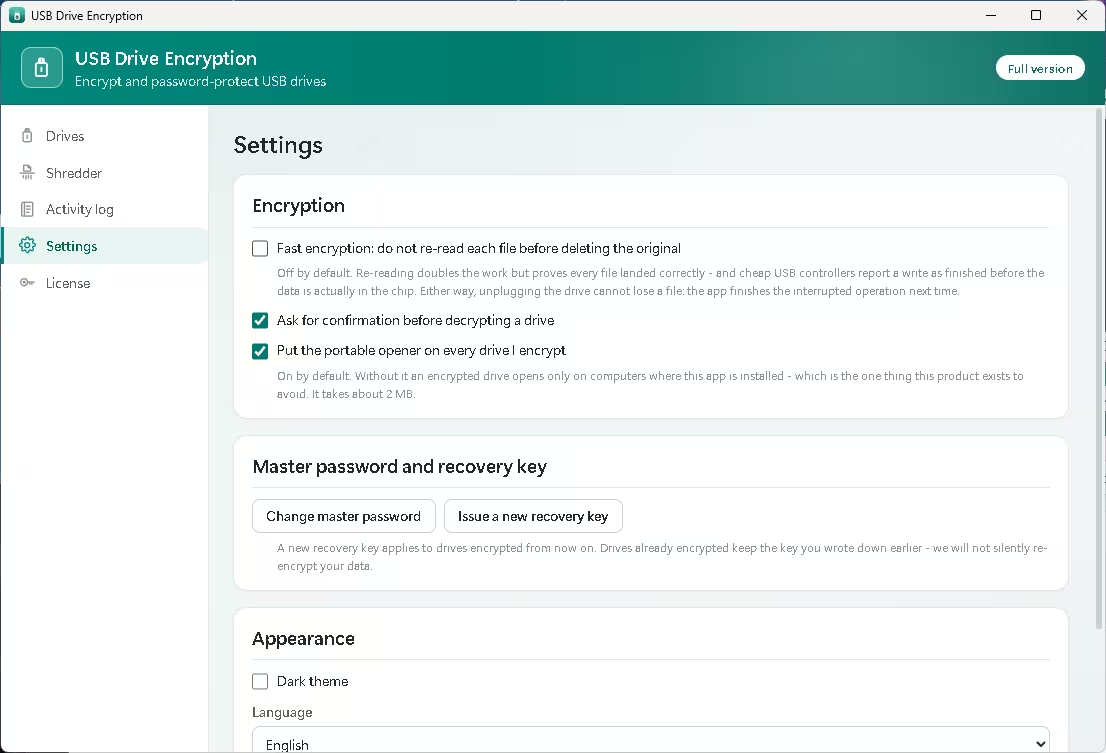
Leave “Fast encryption” unticked unless you trust your USB stick completely.
There’s also a basic file Shredder. To its credit, the app warns that overwriting files on flash memory is no guarantee against forensic recovery, and suggests encrypting the drive instead if the data must stay unreadable. Rare to see a vendor admit the limits of its own feature.
How to Download and Activate USB Warden for Free
- Download the installer from GRTsoft’s server: UsbDriveEncryptionSetup.exe. The file name says “USB Drive Encryption” — that’s expected.
- Install and launch the app, then set your master password.
- Save your recovery key (copy, save to file or print), tick the confirmation box and click Start using the app.
- Open the License page from the left sidebar.
- Enter your email address in the “E-mail used for the purchase” field.
- Paste this licence key and click Activate:
Giveaway licence key (shared by GRTsoft for all readers)
UDE3-KUUNE-SBRHM-DAWVJ
Once activated, the header badge changes from “Free version” to “Full version,” and the drives page says you can protect as many drives as you like.
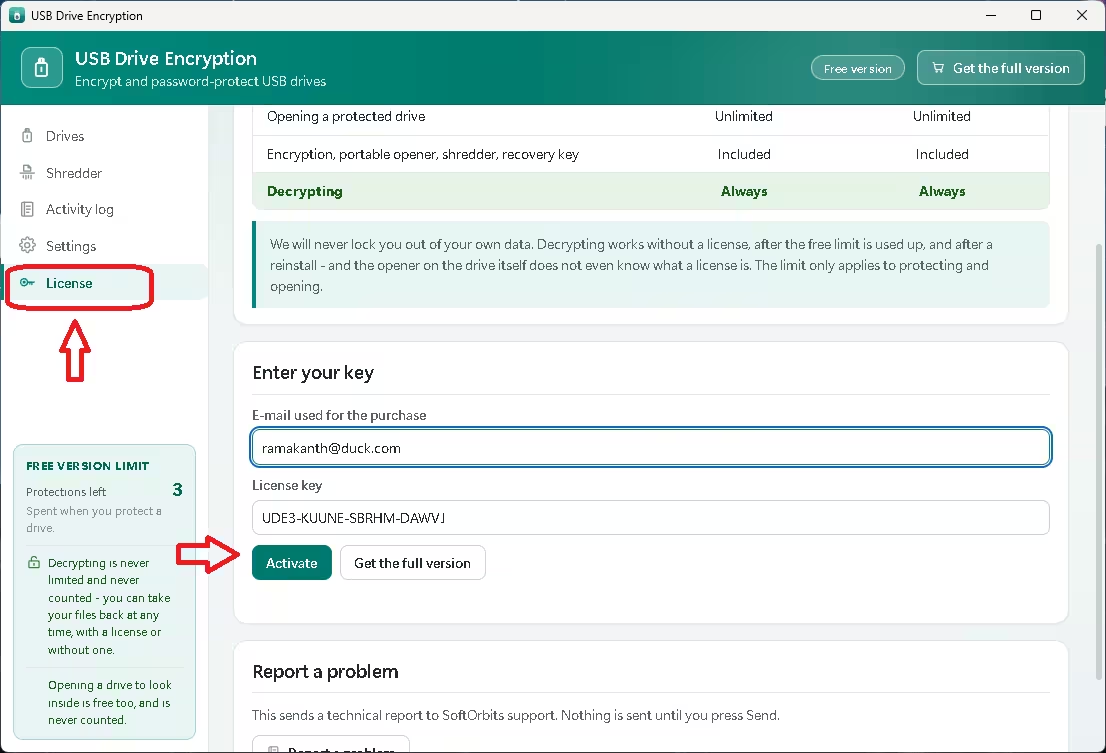
License → enter email and key → Activate. (Email address redacted.)
⚠️ Licence terms: the key covers version 3.3 for 1 year. Don’t update to 3.5 expecting the key to carry over. GRTsoft hasn’t announced an end date for the giveaway, so activate soon in case the shared key is withdrawn.
USB Warden Free vs. Full Version
| Feature | Free version | Giveaway / full licence |
|---|---|---|
| Protecting (encrypting) drives | 3 protections | Unlimited |
| Decrypting your files | Always allowed | Always allowed |
| Opening a protected drive | Free and uncounted in v3.3* | Unlimited |
| AES-256 encryption, portable opener, shredder, recovery key | Included | Included |
| Time limit | None | 1 year (giveaway key) |
*The tested 3.3 app says opening a drive is never counted. GRTsoft’s current website FAQ mentions five free unlocks, which may reflect the newer 3.5 build. The licence removes the question either way.
The free tier counts only protections — decrypting is always open.
Pros and Cons
| 👍 What I liked | 👎 What to watch |
|---|---|
| Opens on other Windows PCs with no install or admin rights | Windows only — no macOS or Linux access |
| No reformatting; existing files stay put | Giveaway licence is 1 year and locked to v3.3 |
| Decryption never blocked, even after the licence ends | Lose password and recovery key = data gone forever |
| Warns about low free space before touching anything | Needs free space for your largest file before encrypting |
| Clean, plain-English interface with honest warnings | Name mismatch (USB Warden vs USB Drive Encryption) can confuse |
Frequently Asked Questions
Is USB Warden the same as USB Drive Encryption?
Yes. GRTsoft markets it as USB Warden, but the installer, setup wizard and app window still say USB Drive Encryption. It’s the same program.
Can I open an encrypted drive on a PC without USB Warden installed?
Yes, on Windows. Run UsbDriveEncryption.exe from the drive, type your password, and your files open. No installation or administrator rights are needed on that PC.
What happens when the 1-year giveaway licence expires?
You lose unlimited protection, but you can still decrypt and recover all your files. The app states that decryption works without any licence.
I forgot my master password. Can GRTsoft reset it?
No. Your recovery key is the only way back in. Without both the password and the key, the files stay encrypted permanently.
Does it work on Windows 11 Home?
Yes. It supports Windows 11, 10, 8.1, 8 and 7, and it’s a handy option on Home editions, where BitLocker To Go can’t be set up.
Will an encrypted drive open on a Mac or Linux?
No. The portable opener is a Windows program. Decrypt the files on a Windows PC first if you need them elsewhere.
Looking for more ways to protect your data? Have a look at our Kryptel Enterprise free licence for encrypting files and folders, the Steganos Privacy Suite 22 giveaway for encrypted safes and password management, or browse everything in our free security software section.
📊 Techno360 Verdict
Rating: 4.3 / 5 — Grab it if you carry sensitive files on a pen drive
USB Warden does one thing and does it without drama. Setup is quick, the warnings are honest, and the portable opener solves the real headache of reading an encrypted stick on a PC you don’t control. The safety-first touches — the free-space check, the verify-after-write default, and the promise that you can always decrypt — show someone thought about what goes wrong with USB drives in real life.
The trade-offs are clear too: Windows only, a licence that lasts a year on version 3.3, and zero forgiveness if you lose both your password and recovery key. Store that key properly and this is an easy recommendation for students, office workers and anyone who has ever left a pen drive behind.
Tested by Ramakanth on Windows 11 in October 2026 using USB Drive Encryption 3.3. The licence key and download link were supplied directly by GRTsoft/SoftOrbits. Encryption algorithm details are as stated by the developer.